Minikube in a nutshell
Minikube lets you run a local Kubernetes cluster on your machine. For context, Kubernetes is an open-source system for automating the deployment, scaling, and management of containerized applications. Minikube, however, is lightweight, quick to set up, and perfect for testing and development.
It simulates a real Kubernetes environment, allowing you to build and test applications locally before deploying them to a larger cluster. By creating a single-node cluster, Minikube helps you mirror a full Kubernetes setup. It uses virtual machines or Docker containers to keep the process smooth and simple.
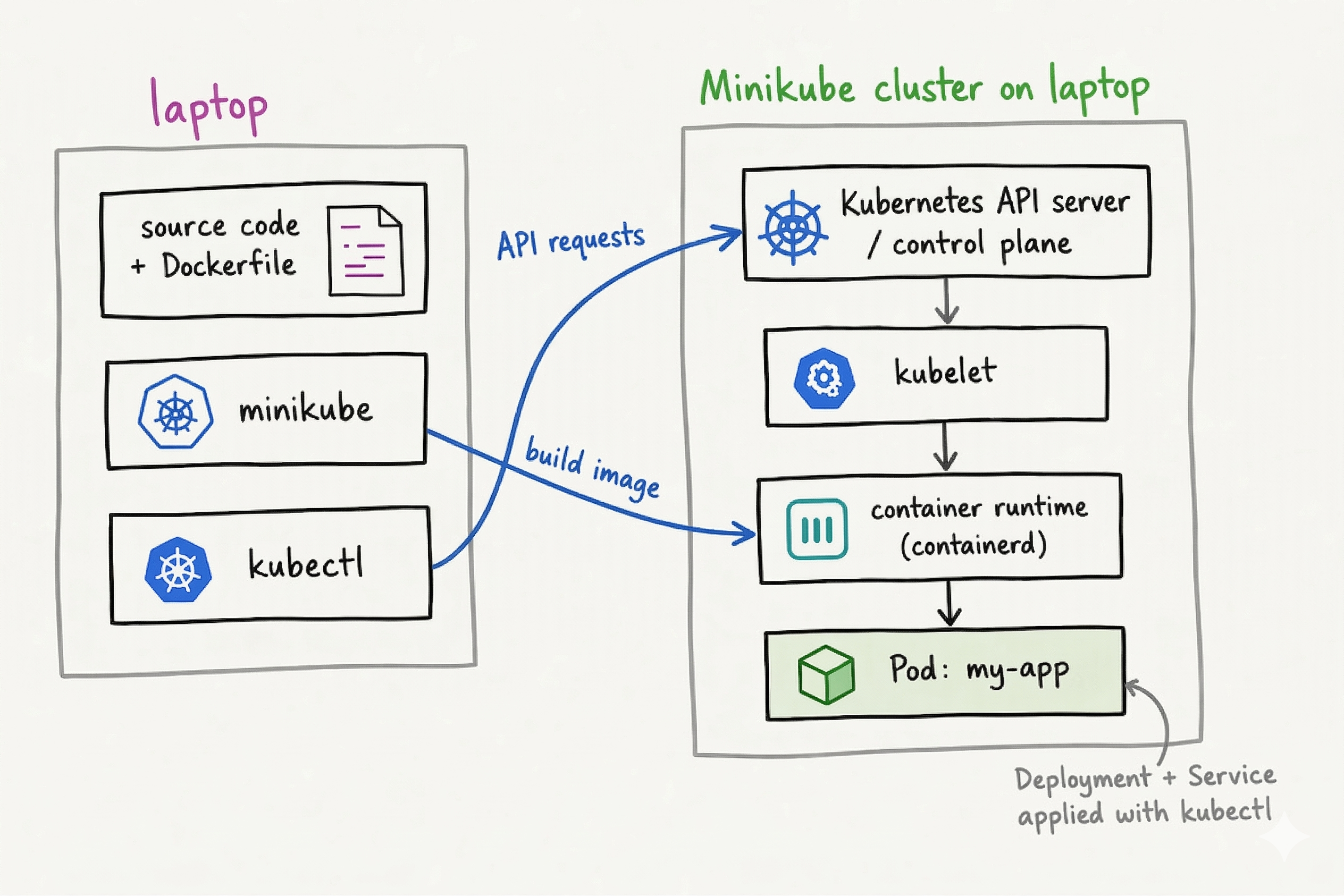
Above, you can see a visual mental model of running an application with Minikube locally. On the laptop, the source code and Dockerfile are used to build the app image, while kubectl and Minikube interact with the local Kubernetes cluster. Inside the cluster, the Kubernetes API server, kubelet, container runtime, and Pod work together to deploy and run the app.
Minikube setup
Installation of Minikube
| |
Using kubectl with Minikube
After minikube start, kubectl is configured to talk to the Minikube cluster automatically. If you already have kubectl installed locally, just use it normally. If not, Minikube includes its own kubectl, so you can run commands through minikube kubectl – … instead.
Example:
| |
If you do not have local
kubectl, you can also make a quick alias for convenience:
1alias kubectl='minikube kubectl --'
kubectl auto-completion
If you want to enable kubectl auto-completion on Ubuntu, you can run:
Install bash-completion if you haven’t already:
| |
Then add kubectl completion to your shell:
| |
When you start typing a kubectl command, you can now press Tab to see available options and complete commands.
Example:
| |
This will auto-complete to:
| |
or show you other options if there are multiple matches.
Start a local cluster
Start a local Kubernetes cluster with Minikube by running:
| |
Then in order to check if the cluster is running properly and healthy, run these commands:
minikube statusto check the status of the cluster. This will return something like:
1 2 3 4 5 6minikube type: Control Plane host: Running kubelet: Running apiserver: Running kubeconfig: Configured
kubectl cluster-infoto get cluster information. This will return something like:
1 2Kubernetes control plane is running at https://<IP_ADDRESS>:8443 CoreDNS is running at https://<IP_ADDRESS>:8443/api/v1/namespaces/kube-system/services/kube-dns:dns/proxy
kubectl get nodesto see the nodes in your cluster. We want to see READY state here on the node. You should see something like:
1 2NAME STATUS ROLES AGE VERSION minikube Ready control-plane 113m v1.35.1
Build app image into Minikube
cd to your project root and make sure you have a Dockerfile for your app. Then run;
| |
my-app:latestname andapp/Dockerfilecan be different for future projects, change them.
Create deployment.yaml and service.yaml files
Create deployment.yaml and service.yaml files under your project, preferably under any kubernetes folder like k8s/
deployment.yaml
| |
How to think about it:
- Deployment says “keep this app running.”
- replicas: 1 matches your subtask.
- matchLabels and labels must match exactly.
- containerPort: 8000 matches your Uvicorn port.
service.yaml
| |
How to think about this:
- Service gives your Pod a stable way to receive traffic.
- selector must match the Pod label from the Deployment.
- targetPort: 8000 sends traffic to the app inside the container.
- type: NodePort exposes it so your browser can reach it through Minikube.
In short;
- deployment.yaml -> Defines how your application pods run and are managed (replicas, updates, container image).
- service.yaml -> Exposes your pods to the network so they can be accessed internally or externally.
Also quick mnemonic to lock it in:
- Deployment -> D for Do: ‘Do run my pods’ (manages pods and replicas).
- Service -> S for See: ‘See my app’ (lets the app be accessed).
Super short, easy to recall: Deployment = Do, Service = See.
Applying manifests
Apply the manifests by running:
| |
Verify everything done so far
Verify everything using
| |
In short, here is what to expect in good and bad scenarios:
kubectl get deployments
Good: Shows the Deployment exists and all desired replicas are available.
1 2NAME READY UP-TO-DATE AVAILABLE AGE my-app 1/1 1 1 10mBad: The Deployment exists, but not all replicas are available yet.
1
2
NAME READY UP-TO-DATE AVAILABLE AGE my-app 0/1 1 0 10m
kubectl get pods
Good: Pod is running and ready.
1 2NAME READY STATUS RESTARTS AGE my-app-6f9d8c7b6b-abcde 1/1 Running 0 10mBad: Pod is not healthy yet, for example
CrashLoopBackOfforPending. Kubernetes documentsPendingas an early Pod phase and separately discusses debugging crashing Pods.1 2NAME READY STATUS RESTARTS AGE my-app-6f9d8c7b6b-abcde 0/1 CrashLoopBackOff 5 10mor
1
2
NAME READY STATUS RESTARTS AGE my-app-6f9d8c7b6b-abcde 0/1 Pending 0 10m
kubectl get services
Good: Since your manifest uses
type: NodePort, the Service should show up asNodePort, notClusterIP.1 2NAME TYPE CLUSTER-IP EXTERNAL-IP PORT(S) AGE my-app-service NodePort 10.103.243.150 <none> 8000:3xxxx/TCP 10mBad: Service was not created.
1No resources found in default namespace.
kubectl rollout status deployment/my-app
Good: Rollout completed successfully. The
kubectl rollout statuscommand watches the latest rollout until it finishes.1deployment "my-app" successfully rolled outBad: Rollout is still in progress or stuck.
1Waiting for deployment "my-app" rollout to finish...
Troubleshooting
- Pod logs:
kubectl logs <pod-name> - Describe pod:
kubectl describe pod <pod-name> - View events:
kubectl get events
Accessing the app
To access the app, run:
| |
This will give you a URL like http://<IP_ADDRESS>:<PORT>. Open that URL in your browser to see your app running.
Changed anything?
If you change the app code, rebuild the image into Minikube (while using local image)
- Rebuild the image into Minikube:
| |
- Restart the Deployment so it makes a new Pod from that rebuilt image:
| |
- Wait until rollout finishes:
| |
- Test again with new changes
| |
I think the mental model of this process can be like;
- Change Python code -> rebuild image
- Change image -> restart Pod/Deployment
- Change Kubernetes YAML -> kubectl apply -f …
BUT if you changed the YAML itself;
| |
For example;
If you changed replicas, image name, env vars, ports -> kubectl apply -f …
If you changed only app code in source code file -> rebuild image, then rollout restart
In short;
After code changes:
- Rebuild image
- Restart deployment
- Wait for rollout
- Test service
After YAML changes:
- kubectl apply -f …
- Check pods/services
- Test again
Stop the cluster when done
Stops the underlying VM or container, but keeps the cluster data so you can start it again later.
| |
You can expect output like this:
| |
Stop a specific cluster
| |
| |
Note: To see existing clusters and get profile name, run
minikube profile listand find the name of the cluster you want to stop.
| |
ACTIVE PROFILEmeans: when you run aminikubecommand without choosing a profile, Minikube will use this cluster by default.
ACTIVE KUBECONTEXTmeans: when you run akubectlcommand,kubectlis currently connected (or talking) to this cluster.However these do not always have to match. Minikube can default to one cluster, while
kubectlis connected to another.
Restart the cluster when needed
| |
Restart a specific cluster
| |
Delete the cluster when done
Removes the cluster VM or container and its associated files.
| |
You can expect output like this:
| |
Delete a specific cluster
| |
| |
Conclusion
This should be a good starting point for me to quickly recall how to use Minikube for local Kubernetes development. The key is to understand the basic workflow which is build the image, define the Kubernetes manifests, apply them, verify everything, and troubleshoot if something goes wrong. With practice, this process will become second nature.